Layer Parenting & Null Objects in Alight Motion (Complete Advanced Guide)
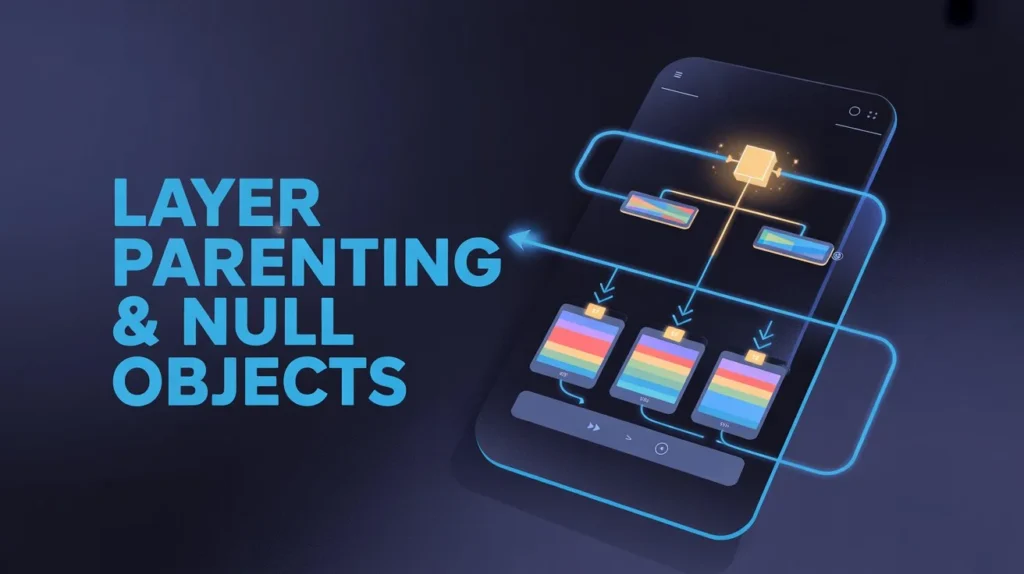
If you want to create smooth, professional, and advanced animations, then mastering Layer Parenting and Null Objects in Alight Motion is essential. These features allow you to control multiple layers efficiently and build complex motion systems similar to workflows used in tools like Adobe After Effects.This guide covers everything from basics to advanced techniques, including real-world usage, tips, and pros and cons.
What is Layer Parenting in Alight Motion?
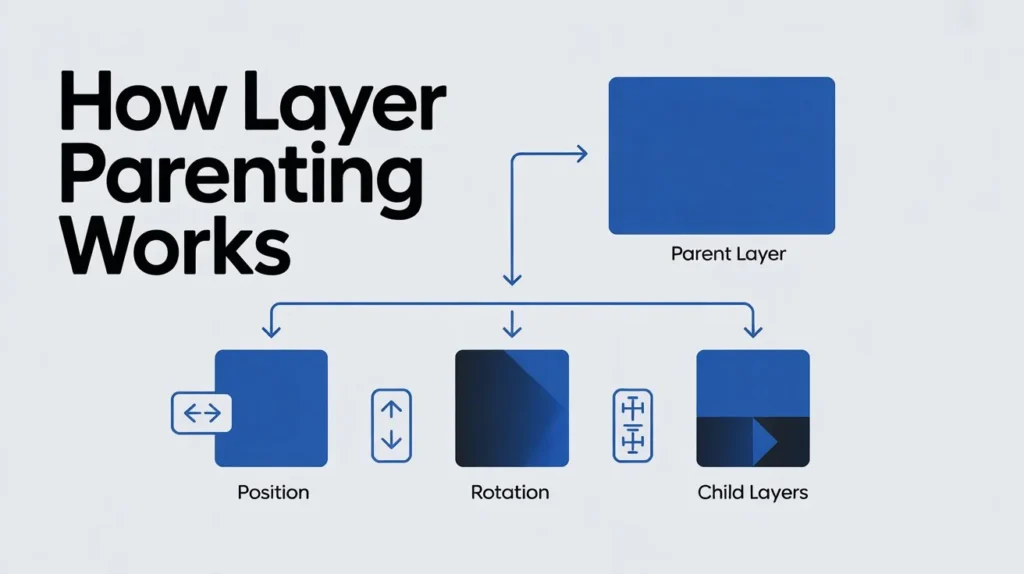
Layer Parenting is a system where one layer (child) is linked to another layer (parent). The parent controls how the child behaves in terms of transformation.
Parent controls:
- Position
- Rotation
- Scale
Child behavior:
- Follows all transformations of the parent
- Cannot influence the parent
This makes animation more efficient and structured, especially in complex projects.
How to Parent Layers (Step-by-Step)
- Open your project in Alight Motion
- Select the layer you want as the child
- Tap the Layer Parenting option
- Choose a parent layer
- Confirm and preview
To remove parenting, simply set the parent to “None”.
How Layer Parenting Works
Understanding the logic behind parenting is important:
- Moving the parent moves the child
- Rotating the parent rotates the child
- Scaling the parent scales the child proportionally
Key rules:
- One parent can control multiple children
- One child can only have one parent
- Parenting works regardless of layer position
- The relationship is one-directional
Parenting Hierarchies
You can create a chain of parent-child relationships:
- Layer A → Parent of B
- Layer B → Parent of C
This allows you to create complex animation systems such as:
- Mechanical movements
- Character animation rigs
- Multi-layer transitions
Effects That Work with Parenting
Certain effects applied to the parent layer also influence child layers, especially those affecting motion:
- Oscillate
- Swing
- Bend
- Auto-Shake
These effects help automate motion and reduce manual keyframe work.
Parenting Helper (Advanced Feature)
The Parenting Helper modifies how a child reacts to the parent’s transformations.
Modes:
Normal
Default behavior where the child fully follows the parent.
Locked
The child moves with the parent but does not rotate or scale.
Weighted
The child partially follows the parent based on defined values.Example:
A rotation weight of 200% makes the child rotate twice as much as the parent.
Auto Rotate Feature
Auto Rotate automatically rotates a layer based on movement.
Useful for:
- Wheels
- Rolling objects
- Continuous rotation effects
The Radius Adjust option helps maintain accurate rotation based on object size.
What Are Null Objects in Alight Motion?
Null Objects are invisible layers used as control points in animation.
Key characteristics:
- Not visible in final export
- Used to control one or multiple layers
- Ideal for organizing complex animations
They act as a central controller without adding visual elements.
How to Add a Null Object
- Tap Add Layer
- Go to Object
- Select Null
A wireframe will appear, which acts as a reference during editing.
How to Use Null Objects (Professional Techniques)
1. Controlling Multiple Layers
Parent multiple layers to a single Null Object and animate the Null. This affects all child layers at once.
2. Separate Axis Control
Animate different axes separately by splitting control between the original layer and the Null Object.
3. Camera Movement Simulation
Use a Null Object to simulate camera movement such as pan, zoom, and tilt.
4. Applying Effects to Groups
Apply effects to a Null Object to affect all its child layers uniformly.
Practical Use Cases
- Character animation
- Motion graphics
- Object tracking
- Group animations
- Scene transitions
These features are especially useful for creating structured and scalable projects.
Advanced Tips for Better Results
- Set parenting at the correct timeline position
- Use easing for smoother animations
- Combine parenting with keyframes
- Maintain a clean hierarchy
- Use motion blur for realism
Animating both parent and child layers together can create more natural motion paths.
Pros and Cons of Layer Parenting & Null Objects
Pros
Efficient workflow
Control multiple layers at once, reducing manual work.
Professional-level animation
Allows creation of complex motion systems.
Better project organization
Helps maintain structure in large projects.
Smooth and natural motion
Improves animation quality without excessive keyframes.
Flexible control
Null Objects provide advanced animation control.
Cons
Learning curve
Beginners may find parenting confusing initially.
Dependency issues
Incorrect hierarchy can break animations.
Limited compared to desktop tools
Less powerful than Adobe After Effects.
Precision required
Small mistakes can affect the entire animation.
Performance limitations
Heavy projects with many layers may slow down.
Common Mistakes to Avoid
- Assigning incorrect parent layers
- Ignoring hierarchy structure
- Setting parenting at the wrong timeline frame
- Overusing effects on parent layers
- Not previewing animations after changes
Always review your animation before final export.
Why Layer Parenting & Null Objects Matter
Using these features in Alight Motion helps you:
- Create more advanced animations
- Improve editing efficiency
- Maintain project organization
- Achieve professional-quality results
Conclusion
Layer Parenting and Null Objects are essential tools for advanced animation in Alight Motion. While they may seem complex at first, they significantly improve workflow and creative possibilities once mastered.Although desktop tools like Adobe After Effects offer deeper capabilities, Alight Motion provides a strong mobile-based alternative for creating high-quality animations.Start with basic parenting, experiment with Null Objects, and gradually build more complex animation systems.