How to Create Full-Screen and Aspect Ratio in Alight Motion – 2026 Guide
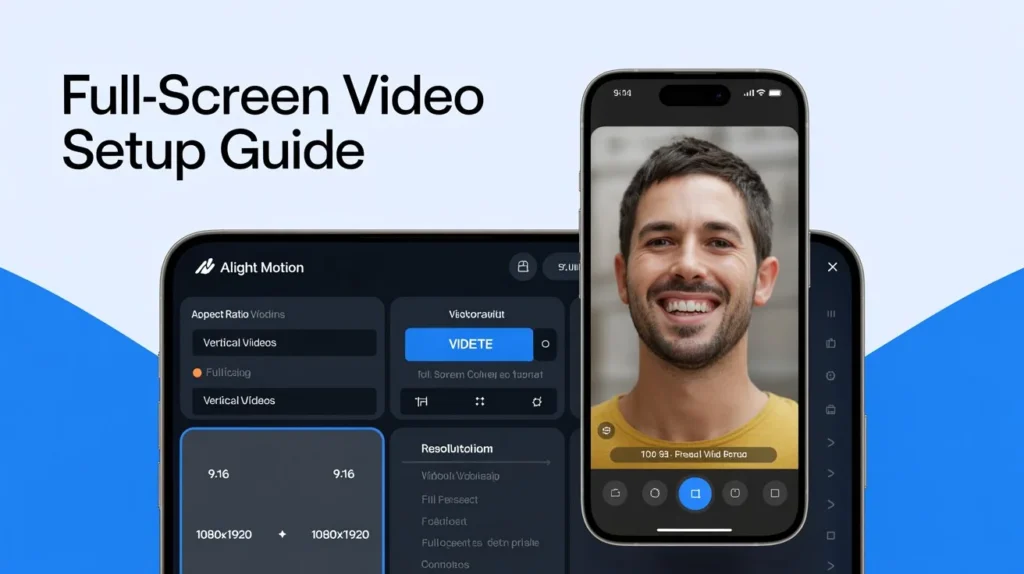
How to Create Full-Screen and Aspect Ratio in Alight Motion is a common issue when videos show black borders or don’t fit properly on the screen. Many users edit for hours but still get unprofessional results on platforms like Instagram Reels, YouTube, and TikTok.
The main problem is using the wrong aspect ratio or resolution, which causes cropping, stretching, or low video quality. Even good edits can look bad if the project settings are incorrect.
In this guide, you will learn the exact full-screen settings in Alight Motion, the best aspect ratios for each platform, and simple ways to fix black borders. By the end, you will be able to create clean, high-quality videos that fit perfectly on any screen.
Quick Answer (Featured Snippet)
To create full-screen videos in Alight Motion, select the correct aspect ratio (16:9 for YouTube or 9:16 for Reels) and set the resolution to 1080p (1920×1080 or 1080×1920). Always match your video format with the platform to avoid black borders.
What is Aspect Ratio in Alight Motion?
Aspect ratio simply means the shape or frame size of your video. It defines how your content appears on different screens, like mobile devices or widescreen displays. In video editing, choosing the correct aspect ratio is the first step to creating a professional video.
Common Aspect Ratios Explained
- 16:9 → Widescreen format used for YouTube and landscape videos
- 9:16 → Vertical format used for Instagram Reels, TikTok, and Shorts
- 1:1 → Square format used for social media posts
Using the correct ratio ensures your video fits perfectly without cropping or black bars.
Why Full-Screen Videos Matter on Social Media
Full-screen videos are very important for social media platforms. When a video fills the entire screen, it looks more professional and keeps users more engaged. People are more likely to watch full videos on Reels, TikTok, and Shorts when there are no black borders.
Full-screen content also increases watch time and improves performance because it gives a better mobile viewing experience. This is why a proper aspect ratio is very important in video editing.
Aspect Ratio vs Resolution (Important Difference)
Many beginners confuse aspect ratio with resolution, but they are different. Aspect ratio defines the shape, while resolution defines the clarity using pixels. Both must work together to create a full HD or 4K video.
What is Resolution?
Resolution is the number of pixels in your video, like 1920×1080 (Full HD) or 3840×2160 (4K). Higher resolution means better video clarity and sharpness.
How They Work Together
For example, a 16:9 ratio with 1920×1080 resolution gives you a perfect widescreen video. A 9:16 ratio with 1080×1920 is ideal for vertical mobile viewing. If these don’t match, your video may look stretched or cropped.
Most Used Video Sizes in 2026
In 2026, these are the most common video sizes used on social media platforms. Each platform has its own preferred format.
YouTube uses the 16:9 widescreen format, which is best for landscape videos. TikTok and Instagram Reels use a 9:16 vertical format for mobile viewing. Facebook posts often use a 1:1 square format. Cinematic videos use a 21:9 widescreen format for a movie-style look.
Using the correct size helps your video look clean and avoids stretching or cropping.
Ideal Video Frame Size for Mobile Editing
Choosing the correct video frame size is very important in mobile video editing. If your frame size does not match the platform, your video may look cropped or show black borders.
For vertical mobile videos, 1080×1920 is the best standard. For widescreen videos, 1920×1080 works perfectly. These dimensions help your video fit properly on all devices.
Best Resolution for Low-End Devices
If you are using a low-end phone, choosing the right resolution is very important for smooth editing.
720p is best for smooth performance on weak devices. 1080p gives the best balance between quality and performance. 4K is very high quality but may cause lag on budget phones. Lower FPS can also help improve editing speed and stability.
Best Aspect Ratio for Each Platform
Choosing the right format based on platform requirements improves video performance and engagement.
- YouTube: 16:9 (1920×1080)
- Instagram Reels: 9:16 (1080×1920)
- TikTok: 9:16 (1080×1920)
- WhatsApp Status: 9:16 (1080×1920)
Matching your video frame size with platform standards avoids compression and quality loss.
Best Aspect Ratio Settings in Alight Motion
If you are confused about which aspect ratio to choose, follow a simple rule. Use 16:9 for landscape videos and 9:16 for vertical videos. These settings help your content display perfectly in full-screen without black borders.
For mobile platforms like Instagram Reels, TikTok, and WhatsApp Status, the 9:16 ratio works best. Most users watch content vertically, so this format improves engagement and viewing experience.
How to Create a Full-Screen Ratio in Alight Motion
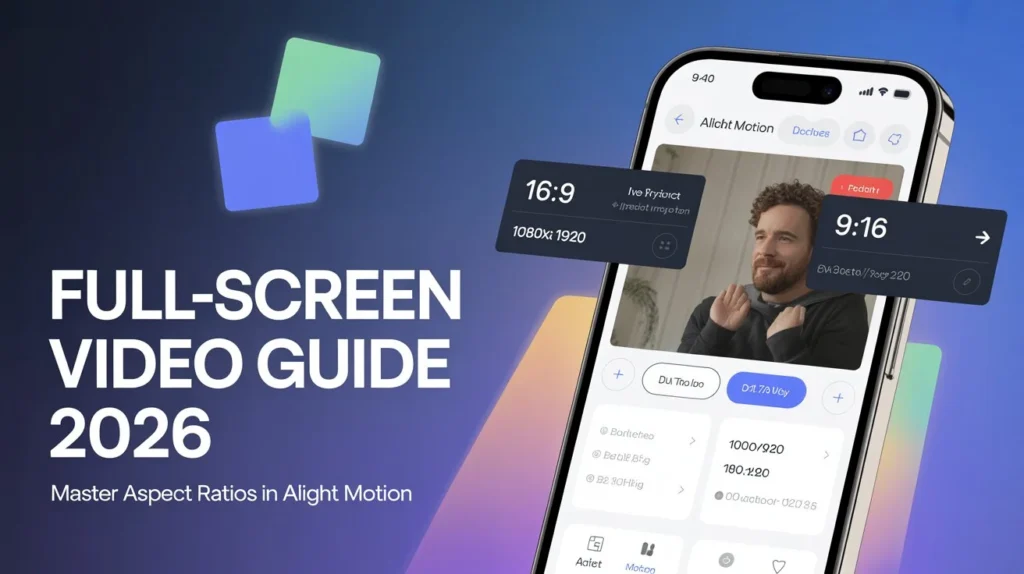
Step 1: Open the Alight Motion App
Open the app on your Android or iPhone device and tap the “+” icon to create a new project.
Step 2: Select Aspect Ratio
Choose 16:9 for landscape videos or 9:16 for vertical content like Reels and Shorts.
Step 3: Set the Right Resolution
Select 1080p (Full HD) for best quality. You can also use 4K if your device supports it.
Step 4: Add Clips or Media
Import your video clips or images and adjust them using the Move & Transform tool.
Step 5: Preview Before Export
Always preview your video in full screen to ensure there are no black borders or cropping issues.
How to Change Aspect Ratio in Existing Projects
Sometimes you need to change the aspect ratio after creating a project. This can be done easily in Alight Motion.
Open your project settings and change the aspect ratio. After that, you need to adjust all layers again to fit the new size. Make sure to scale your media properly and always preview before exporting to avoid layout issues.
Best Export Settings for Full-Screen Video
To maintain high video quality, you need proper export settings.
- Resolution: 1080p or 4K
- FPS: 30 or 60 fps
- Bitrate: High
- Format: MP4
Exporting at a low bitrate or resolution can reduce clarity and cause compression issues.
Best FPS Settings for Smooth Videos
FPS means frames per second, and it controls how smooth your video looks.
30 FPS is good for normal videos and social media content. 60 FPS is better for gaming and cinematic edits because it looks very smooth. Higher FPS increases file size, so it should be used only when needed. For weak devices, 30 FPS is usually the best option.
Difference Between Bitrate and Resolution
Resolution controls the size and clarity of your video, while bitrate controls the level of detail and smoothness. Both are important for high-quality output.
If your resolution is high but the bitrate is low, the video may still look blurry. That is why you should always balance both settings during export.
How to Avoid Blurry Videos in Alight Motion
Blurry videos usually happen because of low resolution or incorrect export settings. If you export your video in 720p or with a low bitrate, the quality will drop.
Always choose 1080p or 4K resolution and keep the bitrate high. Also, make sure your original clips are high quality, because low-quality clips cannot produce a sharp final video.
How to Fix Black Borders in Alight Motion
Black borders appear when your aspect ratio does not match the video format.
Method 1: Match Aspect Ratio
Always set your project ratio according to your video platform.
Method 2: Use Scale Tool
Use the Move & Transform tool to scale your video and fill the screen.
Method 3: Crop Smartly
Crop unwanted areas carefully so important content remains visible.
Why Black Borders Appear
Black borders appear when your video size does not match the project size. This usually happens when the aspect ratio is wrong.
It can also happen if you use a horizontal video inside a vertical project. Another common reason is incorrect scaling, which leaves empty space on the screen.
Tips to Improve Full-Screen Video Quality
Small improvements can make a big difference in your final output.
Choose the correct ratio and Resolution
Always match the aspect ratio with the resolution to avoid distortion.
Keep Content in Safe Area
Place text and important elements in the center to prevent cropping.
Preview Before Export
Check your video in preview mode to catch any mistakes early.
Use High-Quality Clips
Low-quality clips reduce overall video clarity even in HD export.
Best Aspect Ratio for YouTube Shorts in Alight Motion
For YouTube Shorts, the best format is a 9:16 vertical ratio. The resolution should be 1080×1920 for the best quality. Keep the main subject in the center so nothing important gets cut off. Always export in MP4 format for better compatibility and quality
Safe Area Guide for Text and Elements
A common mistake is placing text or important elements too close to the edges of the screen. On some platforms, these parts may get cut off. Always keep your text near the center and leave some margin from the edges. This safe area keeps your content visible and makes your video look more professional.
How to Create Reels & Status in Alight Motion
For social media content, the vertical video format works best.
Best Settings for Reels
Use a 9:16 ratio with 1080×1920 resolution for Instagram Reels and TikTok.
WhatsApp Status Optimization
WhatsApp compresses videos, so export at the highest quality and proper bitrate to reduce quality loss.
Best Settings for TikTok Videos
For TikTok videos, use 9:16 vertical format with 1080×1920 resolution. This is the standard size for mobile videos. 30 FPS is enough for smooth playback. Always use high bitrate and export in MP4 format for best quality on TikTok.
Cinematic Aspect Ratios (Advanced Tip)
If you want a professional film look, you can use cinematic ratios.
What is the 21:9 Ratio?
It is a widescreen cinematic format used in movies and professional videos.
When to Use It
Use this format for storytelling videos, trailers, or aesthetic edits.
How to Make Videos Look Cinematic in Alight Motion
To make your video look cinematic, you can use a few simple editing techniques.
Add black bars at the top and bottom of the screen for a movie look. Use slow zoom effects and motion blur to make the movement smoother. Color grading also helps improve the overall mood of the video. Using 24 FPS gives a more film-like effect
Best Aspect Ratio for Different Content Types
Different types of content need different aspect ratios for the best results. Gaming videos work best in 16:9 format. Reels and TikTok videos use a 9:16 vertical format. Tutorials usually use 16:9 widescreen. Memes can use a 1:1 square format. Cinematic videos look best in 21:9 format. Using the correct ratio improves video quality and engagement.
Common Mistakes to Avoid
Avoid these mistakes to improve your video editing results.
- Using the wrong aspect ratio
- Exporting in low resolution
- Ignoring preview mode
- Cropping important elements
Pro Tips for Professional Full-Screen Videos
These tips help you create high-quality content consistently.
- Use Full HD or 4K resolution
- Maintain proper framing
- Avoid over-compression
- Use correct scaling tools
Safe Area Guide for Text and Elements
Keep Text in Safe Area (Important Tip)
A common mistake is placing text or important elements too close to the edges of the screen. On some platforms, these parts may get cut off. Always keep your text near the center and leave some margin from the edges. This safe area keeps your content visible and makes your video look more professional.
Conclusion
How to Create Full-Screen and Aspect Ratio in Alight Motion becomes easy when you understand the basics of ratio and resolution. Choosing 16:9 for YouTube or 9:16 for vertical platforms ensures your video looks clean and professional. By following the correct settings and avoiding common mistakes, you can create high-quality videos without black borders or quality loss.