How to Replace Images in Alight Motion – Complete Guide 2026
Learning How to Replace Images in Alight Motion is an essential skill for modern mobile editors who work on motion graphics, reels, and XML templates. In apps like Alight Motion, replacing images correctly allows you to upgrade visuals without breaking animations, keyframes, or effects.
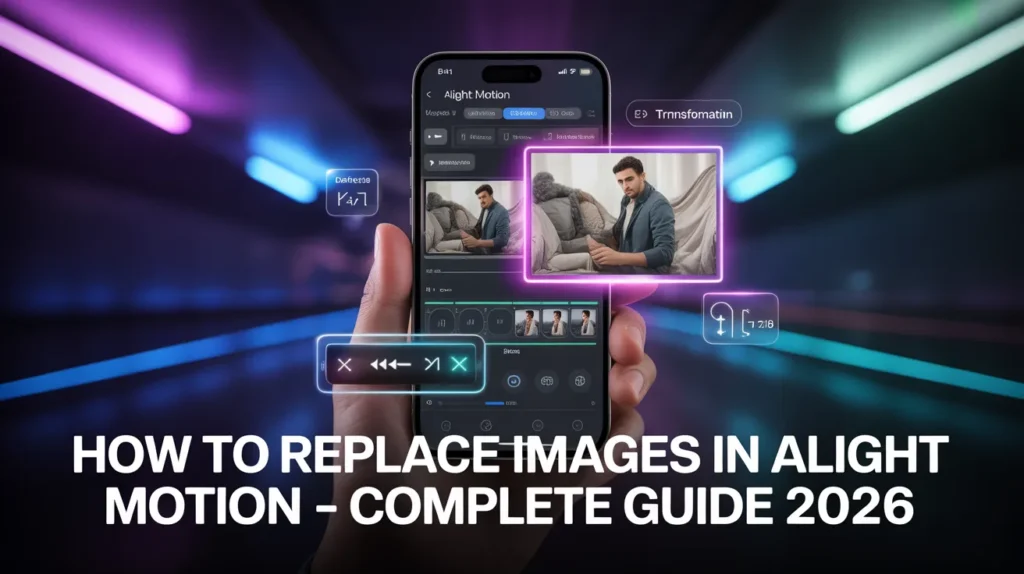
Many creators struggle because they delete layers instead of replacing them, which destroys animation structure. This guide explains the correct workflow, advanced methods, and pro techniques so you can edit faster and more professionally in 2026.
Why Image Replacement Matters in Editing
Understanding How to Replace Images in Alight Motion is important because it directly improves workflow efficiency and editing quality.Instead of rebuilding animations from scratch, image replacement allows you to keep all keyframes, transitions, and motion effects intact. This is especially useful when working with templates, preset projects, and XML files where structure is already complex. Another major benefit is quality improvement. Many editors start with low-quality placeholders and later upgrade them to HD images without disturbing motion design.
Methods of Replacing Images in Alight Motion
1. Color & Fill Replacement Method
This is the most common method used in How to Replace Images in Alight Motion workflow. You simply change the media inside a layer while keeping animation untouched.
2. Group Layer Replacement
Many templates are built using grouped layers. You must enter the group, locate the image layer, and replace it without breaking hierarchy.
3. XML Template Replacement
Advanced editors working with preset projects use XML files. In this case, How to Replace Images in Alight Motion requires careful navigation through structured layers.
4. Shape or Text Replacement
Instead of images, you can replace media with shapes or text layers while preserving motion effects.
5. Background Replacement
Used in cinematic edits where only background images are changed while foreground animation remains untouched.
Step-by-Step Guide: How to Replace Images in Alight Motion
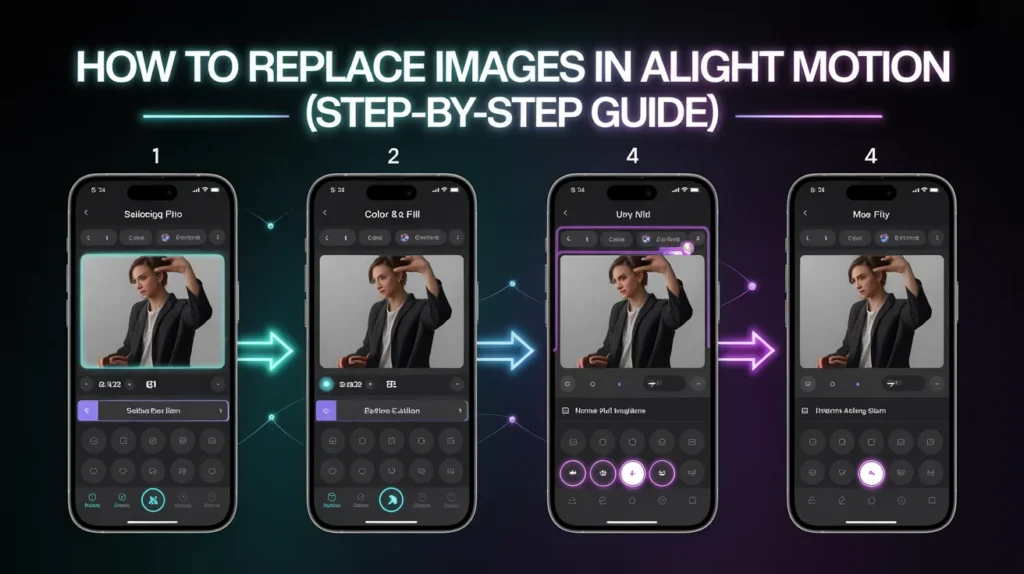
To properly understand How to Replace Images in Alight Motion, follow this workflow carefully.
- First, open your project in Alight Motion and select the image layer from the timeline.
- Next, tap the Color & Fill option in the editing panel. This links the current media used in the layer.
- Then, import a new image from your device gallery and confirm selection. The app will automatically replace the previous image while preserving all animation data.
- Finally, adjust scale, position, and alignment using Move & Transform tools to ensure proper fit inside the composition.
Advanced Techniques for Image Replacement
Advanced creators take how to Replace Images in Alight Motion beyond basic swapping.In nested group layers, multiple image layers exist inside one composition. You must carefully open each group to avoid replacing the wrong element. Mask-based replacement is another professional technique where images are placed inside custom shapes for cinematic effects.
High-end editors also combine image replacement with motion blur, easing curves, and camera depth effects for smoother results. When working with heavy projects, optimizing image resolution helps prevent lag during preview and export.
Image Replacement Workflow Comparison
| Method | Difficulty | Best Use Case | Risk Level |
| Color & Fill Replace | Easy | Simple edits | Low |
| Group Layer Replace | Medium | Templates & XML projects | Medium |
| Manual Re-import | Easy | Basic projects | Low |
| Mask-Based Replace | Advanced | Cinematic editing | High |
Pros and Cons of Image Replacement
Pros
Image replacement in Alight Motion saves significant time because it keeps all animations intact. It allows creators to reuse templates, maintain consistency, and quickly update visuals without rebuilding projects.
Cons
If done incorrectly inside grouped or XML structures, it can break animations. Another issue is aspect ratio mismatch, which may cause stretching or cropping. High-resolution images may also slow down older devices during editing.
Common Problems and Fixes
One common issue in How to Replace Images in Alight Motion is image distortion. This happens when the new image has a different aspect ratio. Fix it using Move & Transform scaling tools.
Another issue is broken animation, usually caused by replacing images outside the correct group layer.If the app becomes laggy, reduce preview quality or compress images before importing.
Pro Tips for Better Results
- Always rename layers before replacing images to avoid confusion in large projects.
- Match color grading after replacement to maintain visual consistency across the entire edit.
- Avoid replacing images while actively adjusting keyframes, as it may affect timing.
- Use easing curves after replacement to improve motion smoothness.
Conclusion
Mastering How to Replace Images in Alight Motion is one of the most important skills for mobile video editors. It allows you to upgrade visuals, reuse templates, and maintain professional animation structure without rebuilding projects.Once you understand layer behavior inside Alight Motion, you can edit faster, smarter, and create high-quality content for platforms like Instagram and TikTok.