Audio Editing and Mixing in Alight Motion (Complete Guide)
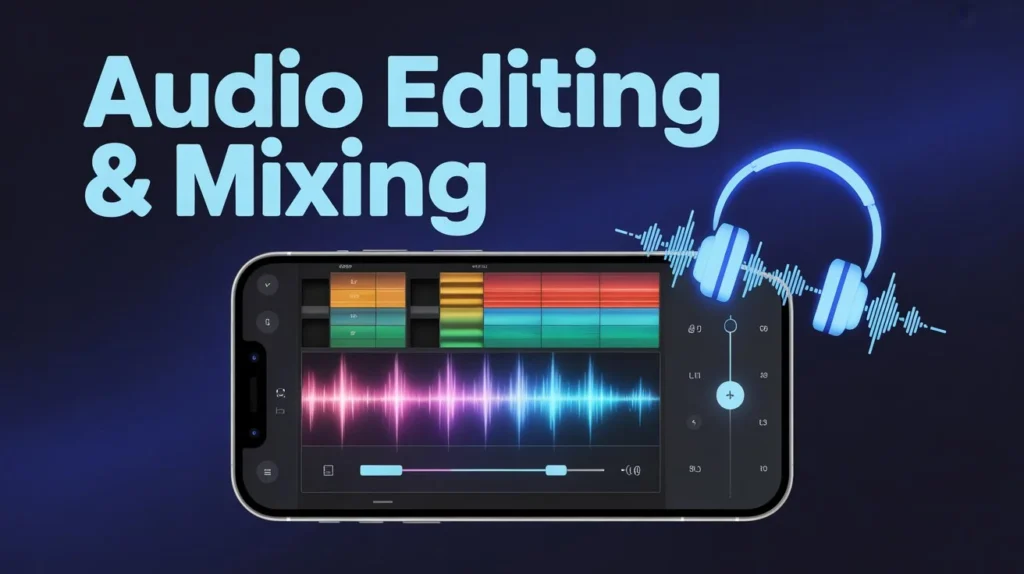
Have you ever edited a video that looks amazing but sounds terrible? Maybe the music is too loud, the voice is not clear, or the audio feels out of sync. This is a common problem for beginners.The truth is, good video is not just about visuals audio plays an equally important role. If your sound is not clear, people will stop watching your video, no matter how good it looks.In this guide, you will learn how to do audio editing and mixing in Alight Motion in a simple way, so your videos sound clean, balanced, and professional.
What is Audio Editing in Alight Motion?
Audio editing means improving and fixing your sound. It includes cutting unwanted parts, adjusting volume, and cleaning up your audio.For example, you can remove silence, trim extra parts, or fix low sound. The goal is to make your audio clear and ready for the final video.
What is Audio Mixing in Alight Motion?
Audio mixing comes after editing. It is the process of balancing different sounds like voice over, background music, and sound effects.For example, your voice should be clear, while music should play softly in the background. Mixing helps combine all audio layers into one smooth and natural sound.
Difference Between Audio Editing & Audio Mixing
| Feature | Audio Editing | Audio Mixing |
| Purpose | Clean audio | Balance audio |
| Process | Trim, cut, fix | Adjust levels |
| Result | Clear sound | Professional sound |
How to Import and Add Audio in Alight Motion
To add audio, open your project and tap the “+” button. Then select audio and choose a file from your device. You can import formats like MP3, WAV, or AAC.Once added, the audio appears as a waveform on the timeline. You can move it left or right to adjust timing and position.
How to Extract Audio from Video
Sometimes you want to use sound from a video. In Alight Motion, you can easily extract audio.Just import your video, select it, and use the option to detach audio. This will create a separate audio layer, which you can edit independently.
Basic Audio Editing Techniques
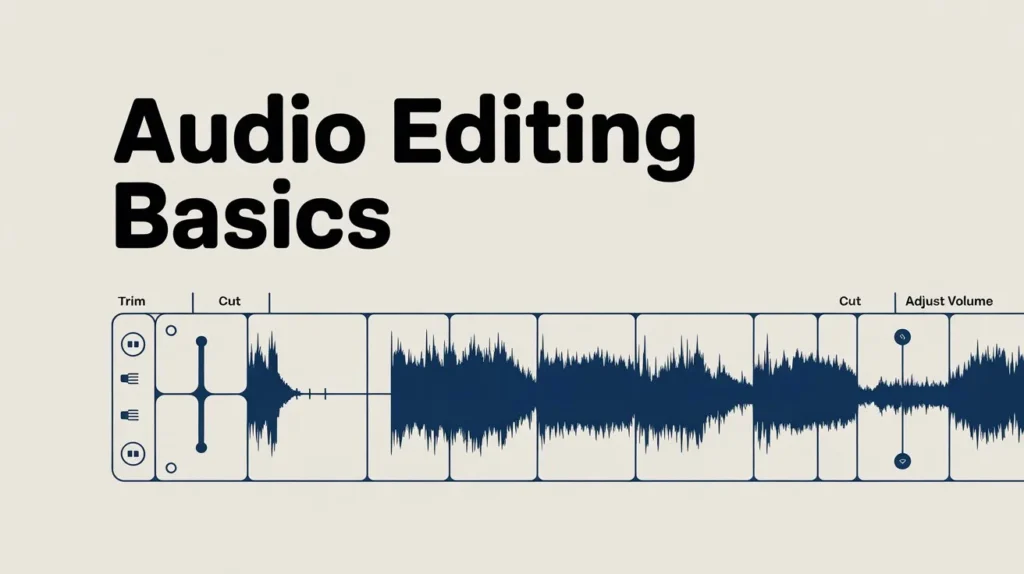
Audio editing includes simple but important steps. You can trim clips by dragging the edges of the audio layer. If you want to cut a specific part, use the split tool.You can also adjust volume levels to make your audio louder or softer. Another important step is syncing audio with video, so everything matches perfectly.
How to Edit Audio in Alight Motion (Step-by-Step)
Start by importing your audio file into the project. Then place it correctly on the timeline. After that, trim unwanted parts and adjust its position.Next, adjust the volume so it fits well with other sounds. Finally, preview your video and fix any timing issues before moving forward.
Audio Mixing in Alight Motion
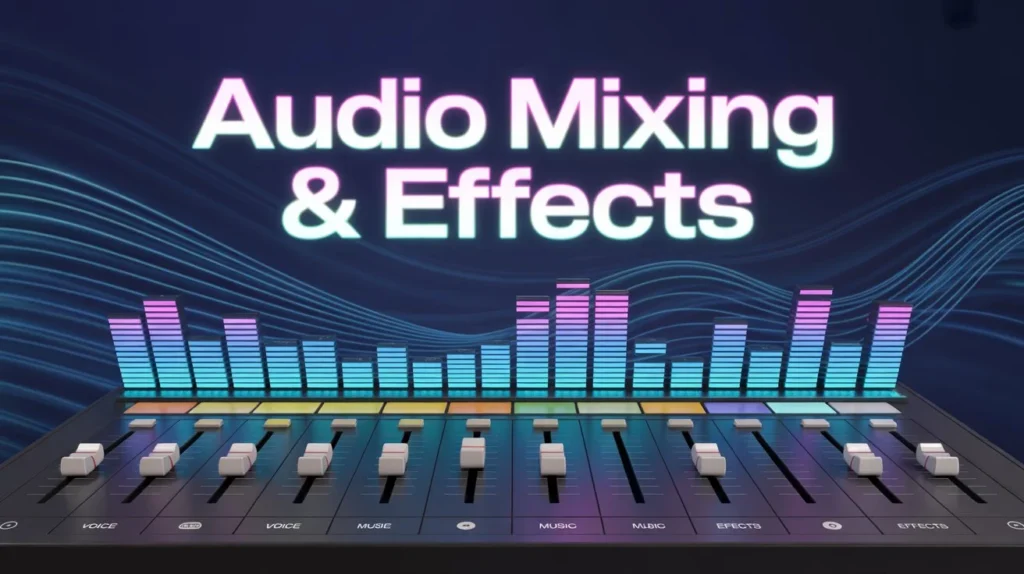
Mixing is all about balancing sound. If you have multiple audio layers, like music and voice, you need to adjust them carefully.Usually, voice should be louder, while background music should be softer. You can also use fade in and fade out effects to make transitions smooth.Good mixing makes your video sound natural and professional.
Audio Effects and Filters in Alight Motion
Alight Motion provides useful audio effects to improve sound quality.The equalizer helps adjust frequencies for clearer sound. Reverb adds depth, making audio feel like it’s in a space. Echo creates repeating sound effects, while noise reduction helps remove background noise.Using these effects properly can greatly improve your audio quality.
Sync Audio with Video Perfectly
Syncing audio is very important. You can match audio with video by aligning the waveform with actions in your clip.Zooming into the timeline helps you place audio accurately. If your audio feels early or late, adjust it slightly until it matches perfectly.
Advanced Audio Editing Techniques
For better results, you can use advanced tools like pitch shift to change sound tone and time stretch to adjust speed without affecting quality.You can also layer multiple sounds to create unique effects. These techniques help make your videos more creative and engaging.
Common Audio Problems & Solutions
Many users face audio issues like low volume, background noise, or sync problems.If your audio is too quiet, increase the volume level. If there is noise, use noise reduction tools. For sync issues, adjust the audio position or check your project settings.
Pro Tips for Better Audio Quality
Always use high-quality audio files for better results. Keep your volume balanced and avoid making it too loud to prevent distortion.Preview your video before exporting and test it on different devices. These small steps can greatly improve your final output.
Conclusion
Audio editing and mixing in Alight Motion are essential for creating professional videos. Clear and balanced audio can make your content more engaging and enjoyable. By using tools like trimming, volume control, and effects, you can easily improve your sound quality. Always balance your voice, music, and sound effects properly for the best results. With practice, you will master audio editing and create videos that not only look great but also sound amazing.