How to Back Up Projects in Alight Motion (Step-by-Step Guide 2026)
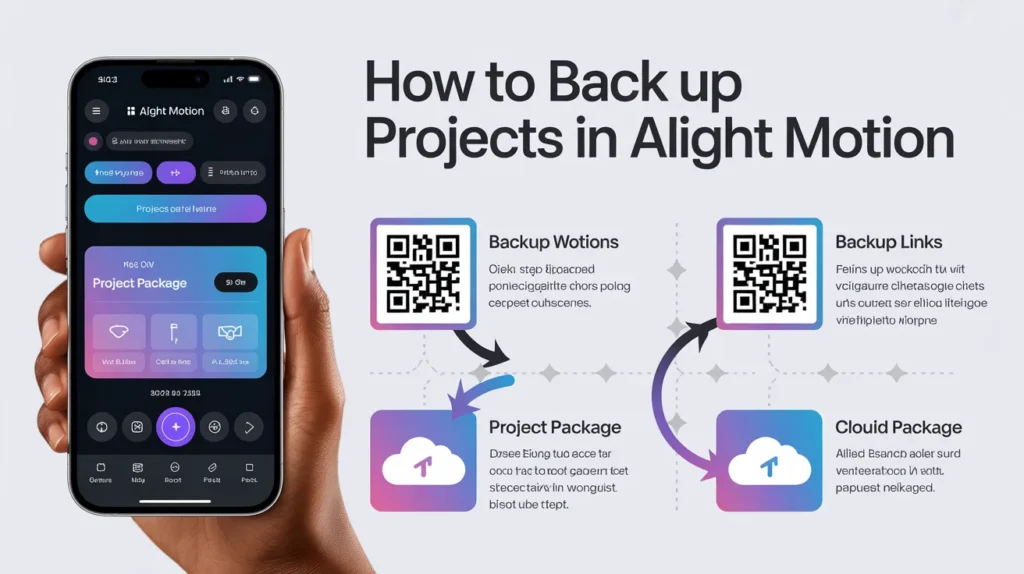
Backing up projects in Alight Motion means saving your edits as a Project Package (via a link or QR code) so you can restore them at any time. You can do it by exporting your project, generating a shareable link or QR code, and saving it safely. If you lose your app or reinstall it, you can import the same project back using that link or QR code.
How to Back Up Projects in Alight Motion is something every editor should understand if they don’t want to lose their hard work. Many users face a serious problem when their projects suddenly disappear after an app crash, update, or reinstall, leaving no way to recover them.
The main issue is that Alight Motion does not store projects in cloud storage. Everything is saved locally on your device, which means a small mistake or an uninstall can permanently delete your work.
To solve this, Alight Motion provides a simple Project Package system that lets you create a backup using a link or QR code. This makes it possible to restore your projects at any time without losing data. In this guide, you will learn how to back up, restore, import, and protect your projects in the easiest way.
Where is Backup Option in Alight Motion? (2026 Guide)
Many beginners cannot find the backup option in Alight Motion and think the app does not have it. Actually, the backup feature is not shown as “backup” directly. Instead, it is available under the Project Package option inside the export or share menu.
To access it, open your project, tap the export or share button, and look for “Project Package.” This is where you can create a backup link or QR code of your project.
What is Project Backup in Alight Motion?
Understanding how to back up projects in Alight Motion is important because it helps you save your edits securely as a project package
. A project backup in Alight Motion is a saved copy of your editing project created using the Project Package feature. This package contains all your layers, effects, and edits in one shareable format.
Instead of saving files normally, Alight Motion converts your project into a link or QR code. You can use this later to restore the same project on any device.
How to Back Up Projects in Alight Motion (Step-by-Step)
To back up your project, first open the Alight Motion app and go to your project list. From there, select the project you want to save, then tap the export or share option.
Now choose the Project Package feature. The app will generate a shareable link and a QR code for your project. Once it is created, you should save it immediately in a safe place, such as Google Drive or your phone’s storage.
This step is very important because if you lose this link or QR code, your project cannot be restored later.
How to Check If Your Backup Is Saved Successfully
After learning how to back up projects in Alight Motion, the next important step is checking whether your backup is saved correctly. If you generated a link, open it once in your browser or notes app to check if it works properly.
For QR codes, you can test by scanning them again inside the app before deleting anything. If the project loads correctly, it means your backup is safe.
This small check can save you from losing important editing work later.
How to Save an Alight Motion Project Package Properly
Properly saving your backup is just as important as creating it. Many users make the mistake of saving only one copy, which becomes risky later.
It is better to store your project link in cloud storage, such as Google Drive, or in a notes app. You should also save the QR code image to your gallery so you always have a backup. Keeping proper names for each project also helps you find them quickly in the future.
Common Mistakes While Backing Up Projects
Many users make small mistakes when creating backups that later lead to project loss.
Some common mistakes include:
Users only save the link but ignore the QR code backup. Some people do not test the backup before deleting their project. Others store the link in unsafe places, such as chat apps, where it gets easily lost. Many also forget to rename their project, making it hard to find later.
Avoiding these mistakes can help you protect your work safely.
Limitations of the Alight Motion Backup System
Although the Project Package system is useful, it still has limitations.
It does not work as an automatic cloud backup. You must manually create every backup. If your internet is unstable, the link may fail to generate. Also, old project versions may not open properly in newer app updates.
That is why regular backups are very important.
How to Import Backup Projects in Alight Motion
If you want to restore a project, open Alight Motion and go to the Templates tab. Here you will find the option to import a project.
You can either scan the QR code or paste the saved link. After that, the app will load your project, and it will appear in your editing timeline just like before.
This process works on both Android and iOS devices without any difference.
How to Recover Deleted Projects in Alight Motion
If you understand how to back up projects in Alight Motion properly, you can easily avoid permanent data loss when projects get deleted. If you have saved a link or QR code, you can easily restore your project using the import option.
First, check your Templates tab or saved storage. If the project is not there, try importing it again using your backup link. However, if you did not create a backup before deletion, recovery is unfortunately not possible.
What Happens If You Reinstall Alight Motion?
When you reinstall Alight Motion, all locally saved projects are deleted automatically. This includes drafts, edits, and unfinished work.
Logging back into your account will not restore your projects because they are not stored in the cloud. Only projects backed up via a link or QR code can be recovered after reinstalling.
Android vs iOS Backup Differences in Alight Motion
Alight Motion works almost the same on Android and iOS, but there are small differences in storage behavior. On Android, files are more flexible and can be saved easily in external storage or Google Drive.
On iOS, file access is more restricted, so users mostly rely on in-app storage and cloud options like iCloud or Notes.
However, the backup process using a link or QR code works the same on both platforms.
Why Do Alight Motion Projects Disappear?
There are several reasons why projects can disappear. Sometimes the app crashes unexpectedly, or the device storage is cleaned automatically. In other cases, reinstalling or updating the app may reset local data. Corrupted cache files can also cause missing projects.
This is why creating a backup is extremely important before making any changes to the app.
When You Can Lose Alight Motion Projects
Sometimes users don’t realize how easily their projects can be lost in Alight Motion. For example, if your phone suddenly shuts down while you’re editing, your unsaved changes may disappear.
Another common situation is when users change or reset their devices without creating a backup. In this case, all locally saved projects are removed from the app storage.
Many editors also lose projects after accidental uninstall, thinking their data is safe. That’s why understanding backup is not optional; it is necessary.
Pro Tips to Keep Your Alight Motion Projects Safe
If you want to avoid losing your work, follow these simple pro tips.
Always create a backup before making big changes in your edit. Save both a QR code and a link for two recovery options. Use cloud storage like Google Drive for extra safety. Also, keep your app updated to avoid bugs during export or import.
These small habits can protect your projects in the long run.
Common Problems While Backing Up Projects
While creating backups, users may encounter issues such as export failures, QR codes that do not scan, or links that do not open properly. Sometimes the app may also crash during the export process.
These problems usually happen due to low storage, unstable internet, or app glitches. Trying again after clearing the cache or restarting the app often solves the issue.
How to Fix Backup Problems in Alight Motion
Sometimes users face issues while creating or opening backups.
If your QR code isn’t scanning, restart the app and clear your camera cache. If the link is not opening, check your internet connection or try another browser. If export fails, clear storage space and close background apps.
In most cases, these simple fixes solve the problem.
Difference Between Backup Failure and App Bug
Sometimes users think their backup failed, but the real issue is a temporary app bug. For example, the export process may freeze due to low storage or background apps running.
In other cases, the backup is created successfully, but the app fails to display a confirmation. That is why checking the saved link or QR code is always important.
Understanding this difference helps users avoid unnecessary panic and confusion.
Backup vs Export vs Import (Simple Difference)
- Backup means saving your project in a safe package format.
- Export means generating a link or QR code from your project.
- Import means restoring the saved project back into the app.
All three work together to help you save and recover your editing work
What to Do If the QR Code or Link Is Not Working
Sometimes users face issues where the QR code does not scan or the link does not open. This usually happens due to a broken link, an unstable internet connection, or an outdated app version.
First, try restarting the app and checking your internet connection. If it still does not work, try opening the link on another device or browser.
If nothing works, you may need to re-export the project package to create a fresh backup.
Best Way to Prevent Losing Projects
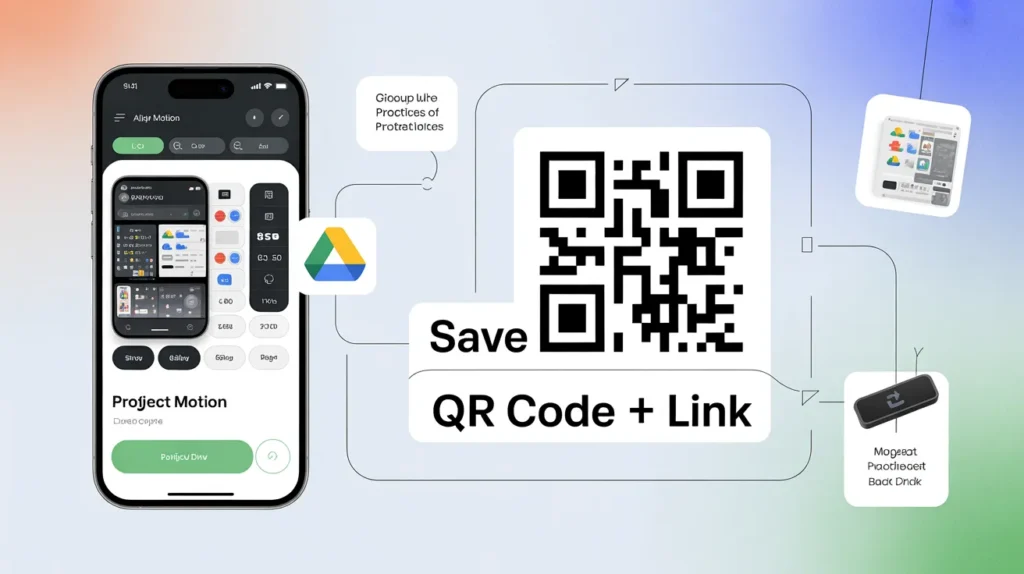
The best way to protect your work after learning how to back up projects in Alight Motion is to follow a proper saving routine. It is better to save both the QR code and the link instead of relying on just one method.
You should also use cloud storage like Google Drive and avoid uninstalling the app without checking your backups. These small habits can save you from losing hours of hard work.
Pro Editor Workflow to Avoid Losing Projects
Professional editors always follow a strict backup routine to avoid losing their work. They usually create a backup before adding major effects or exporting final edits.
A smart workflow is to save two copies of every project, one as a QR code and one as a link. This ensures that even if one method fails, the other still works.
Most experienced editors also name their projects properly, so they can easily find and manage them later.
Difference Between Backup, Export & Import
Backup means saving your project as a package for safety. Export is the process of generating a shareable link or QR code from your project. Import is when you restore that saved project back into the app.
Understanding these differences helps avoid confusion while working in Alight Motion.
Can You Recover Projects Without Backup?
No, you cannot recover Alight Motion projects without a backup.
Since the app does not use cloud storage, all projects are saved only on your device. Once they are deleted or lost, there is no built-in recovery option unless you previously saved a Project Package link or QR code.
Conclusion
Knowing how to back up projects in Alight Motion is very important for every video editor because the app does not provide automatic cloud saving. If you do not create backups using the Project Package feature, your work may be permanently lost.
By regularly saving links and QR codes, you can easily restore or transfer your projects at any time without stress or data loss.